


Using Unity Loader
Use Unity Loader to install firmware upgrades for the HART analog I/O modules. Unity Loader is a stand-alone utility that ships with your Control Expert software.
Enable in the page for the gateway DTM; then
With the gateway DTM selected in the , click the right mouse button and select the command to update the edited configuration in the FDR server.
Installing Unity Loader
Insert the Unity Loader installation CD in the CD-ROM drive of your maintenance PC. Autorun launches the setup automatically. If not, double-click Setup.exe. The Unity Loader Installation Wizard will guide you through the Unity Loader installation.
Physically Connecting to the Module
After an IP address has been assigned to the module, the next step is to connect your maintenance PC to the module. You can either directly connect your PC to the module, or merely connect your PC to the Ethernet network to which your module is connected.
Connecting Unity Loader to the module
To establish a connection between Unity Loader and the module, follow these steps:
Step |
Action |
|
|---|---|---|
1 |
Open Unity Loader on your PC: . Unity Loader opens and displays the tab: 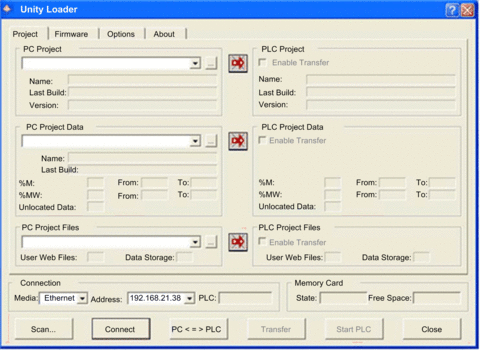 |
|
2 |
In the part of the page, make the following settings: |
|
Media |
Select |
|
Address |
Type in the module IP address. NOTE: Confirm that you are using the IP address for the
HART I/O module, and not the CPU.
|
|
3 |
Click . |
|
Performing the Upgrade
Before beginning a firmware upgrade, confirm that the module is in Stop mode.
The firmware upgrade for a module is contained in a file with an .LDX extension. The single .LDX file contains the necessary module firmware upgrades.
Before upgrading the firmware, Unity Loader confirms that the firmware upgrade file is compatible with your module.
Do not interrupt the firmware download process:
Do not allow an interruption to the power or the communications during the firmware upgrade process.
Do not shut down the Unity Loader software during the upgrade.
If the firmware download process is interrupted, the new firmware is not installed and the adapter continues to use the old firmware. If an interruption occurs, cycle power to the HART module and restart the process.
Open Unity Loader on your PC and update the firmware for the remote I/O adapter:
Step |
Action |
|---|---|
1 |
After Unity Loader has connected to the module, click the tab. |
2 |
In the area of the tab, confirm that the check-box is de-selected. |
3 |
In the area, click the ellipsis () button to open a dialog where you can navigate to and select the firmware file for your module. The firmware is contained in a Unity Loader file (.ldx extension). After you select the firmware file and close the dialog, the selected revision of this firmware is displayed in the list on the left, and the current version of the firmware is displayed in the list on the right. 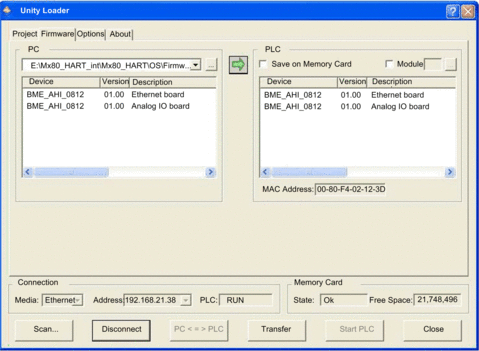 |
4 |
When the arrow in the middle of the screen (above) is green, click . NOTE: Only click if the arrow is green. A yellow
arrow indicates that the firmware file on your computer is the same
version or newer than the file selected for transfer; a red arrow
indicates that the firmware on the computer is not compatible with
the module.
|
5 |
Click on the 2 dialogs that appear. A third dialog appears (below), which indicates the transfer status with the blue bars at the bottom of the screen. After the message “Firmware upgraded successfully” is displayed (below), click . 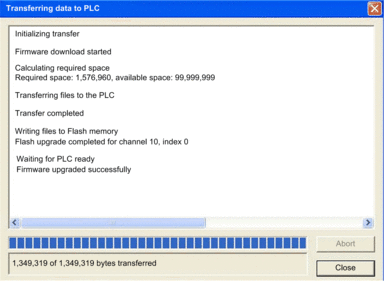 |
6 |
In the Unity Loader software, click and close the window. The module reboots itself on completion of the firmware upgrade. |
Unity Loader includes its own user documentation. Refer to Unity Loader, User Guide for assistance when you perform the firmware upgrade.